

Cleaning Up After an Import
An import is fast, but it is also literal. The Import Orders CSV tool matches customers, products and package groups by their exact name, and creates a new record for anything it cannot match. "Craft Beer Corner" and "Craft Beer Corner Ltd" become two customers. "Pale Ale 6 Pack" becomes a product of its own, with a placeholder recipe named Imported. The LDB product import reuses a product only when the name matches exactly, and creates package groups that have no inventory items in them. After a large file you will have duplicates, and this guide walks you through merging them away in the order that keeps your pricing, sales history and batch records intact.
BarSight has four merge tools for this: customers, package groups, products and recipes. Each one moves every order, batch, stock record and price from the record you are removing onto the one you are keeping, and then removes the duplicate.
Before You Start
- You need the same access you use to edit products, package groups and customers. The merge buttons only appear for people who have it.
- No merge can be undone. Each one asks you to confirm, and once you do the duplicate record is gone. Open both records and check them before you merge.
- Finish importing first. If you still have an orders file to bring in, import it before you clean up, or the next file will recreate the names you just merged. Adding SKUs to your products before the next import also helps, because a SKU match wins over a name match and creates no duplicate.
- Work through the four sections in order: customers, then package groups, then products, then recipes. Package groups go before products because product pricing is stored per package group, so the groups need to be settled before product prices are combined. Recipes go last because recipes can only be merged inside one product, so the products have to be merged first.
Which Record Survives
Every merge form works the same way. The record you opened, or the records you ticked, are the ones that will be removed. The record you pick in the Merge Into dropdown is the one that survives. Its name, settings and existing prices are kept. Anything on the removed record that the survivor already has is dropped, and anything the survivor is missing is filled in from the removed record.
| Merge | Removed | Survives | Where |
|---|---|---|---|
| Customers | The customer you open, or the customers you tick | The customer in Merge Into | Brewery → Customers |
| Package groups | The group you open | The group in Merge Into | Brewery → Final Products → Settings → Configure Package Groups |
| Products | The product you open, or the products you tick | The product in Merge Into Product | Brewery → Recipes |
| Recipes | The recipes you tick inside a product | The recipe in Merge Into Recipe | Brewery → Recipes → open the product |
Step 1: Merge Duplicate Customers
Finding Them
Go to Brewery → Customers. The list is alphabetical, so duplicates usually sit next to each other. A customer created by an import has only a name and an address, with no contact person, phone or email, which makes the imported copy easy to tell apart from the one you set up by hand. The Customer List report under Reports → Brewery gives you the same list on one page if you would rather scan it on paper.
Merging One Customer
- On the customers list, open the three dot menu on the row of the customer you want to remove and choose Merge Customer. You can also open the customer and click Merge Customer in the toolbar.
- In the Merge Customers window, pick the customer you want to keep in the Merge Into dropdown.
- Click Merge, then confirm.
Merging Several at Once
- Tick the box on each duplicate you want to remove. Tick the header box to select every customer showing on the page.
- Click Bulk Actions and choose Merge Selected.
- The Bulk Merge Customers window lists the customers you ticked under Customers to merge FROM. Pick the survivor in Merge INTO Customer. The survivor cannot be one of the ticked customers.
- Click Merge Customers, then confirm.
[SCREENSHOT: Customers list with two duplicate rows ticked and the Bulk Merge Customers window open, showing the FROM list and the Merge INTO Customer dropdown]
What Moves and What Does Not
- Moves to the survivor: every order, every visit note, and every deposit record, so the two deposit balances become one. Notes and delivery notes from the removed customer are added below the survivor's notes. On British Columbia accounts, the license type and license number are copied across if the survivor has none.
- Dropped with the removed customer: its address, phone, email, contact person, the people on its Contacts list, price list, payment terms, delivery area, discount and sales rep. If the removed record has a better address or a contact you want, copy it onto the survivor before you merge.
Step 2: Merge Duplicate Package Groups
Finding Them
Go to Brewery → Final Products, open the Settings menu and choose Configure Package Groups. Each group is listed with the inventory items it is made of. A group created by the Orders or LDB import has no items at all, and its name is whatever text was in your file, such as Case - 24x - 355ml - Can or 473mL. Those are the ones to merge into the real groups you built with cans, lids and labels.
Merging a Group
- Click the group you want to remove to open it.
- Click Merge Group in the toolbar.
- Pick the group you want to keep in the Merge Into dropdown. BarSight remembers your last pick for a few minutes, which saves time when several imported groups all belong to the same real one.
- Click Merge, then confirm.
[SCREENSHOT: Package Settings list showing an imported group with no items next to a real group with cans, lids and labels, and the Merge Package Group window open]
The Rules
A group with no items, which is what the imports create, can be merged into any group. Two groups that both have items must be the same package in every way that affects volume and costing:
- The same container, with the same volume and unit, and the same number of containers per package.
- The same SKU multiplier, the same tank settings, and the same consume setting on the container.
- The same number of items, and the same inventory items in each. A group with a label item cannot merge into one without it.
If any of these differ, the merge stops and tells you which rule failed. Fix the surviving group so the two match, or add the missing item to it first. See Adding Items to Package Groups Retroactively.
What Happens
- Every batch that was packaged into the removed group, every packaged stock record and every batch packaging line is switched to the survivor.
- Product pricing is combined. Where the survivor has no price row for a product, the removed group's row is copied over. Where it has one, only the blanks are filled in: a price of $0.00, a missing tax, SKU, UPC or deposit. A price that is already set on the survivor is never changed.
- The removed group is set to Removed. You can still see it by switching the list to Removed, but it no longer appears when packaging or pricing.
Because existing prices win, the direction matters when both groups carry prices. If the imported group has the correct wholesale prices and your real group has none, that is fine, the prices flow in. If your real group has old prices you want replaced, clear them first, or they will be kept.
Step 3: Merge Duplicate Products
Finding Them
Go to Brewery → Recipes, which lists your products. A product created by the orders import has the default colour swatch and a single recipe named Imported. If the import could not separate the package from the product name, you will see products such as Pale Ale 6 Pack alongside Pale Ale. Hidden products are not shown by default. Click Show All if you think a duplicate is hidden, because a hidden product cannot be chosen as a survivor until you enable it.
Merging One Product
- Open the three dot menu on the row of the product you want to remove and choose Merge Product.
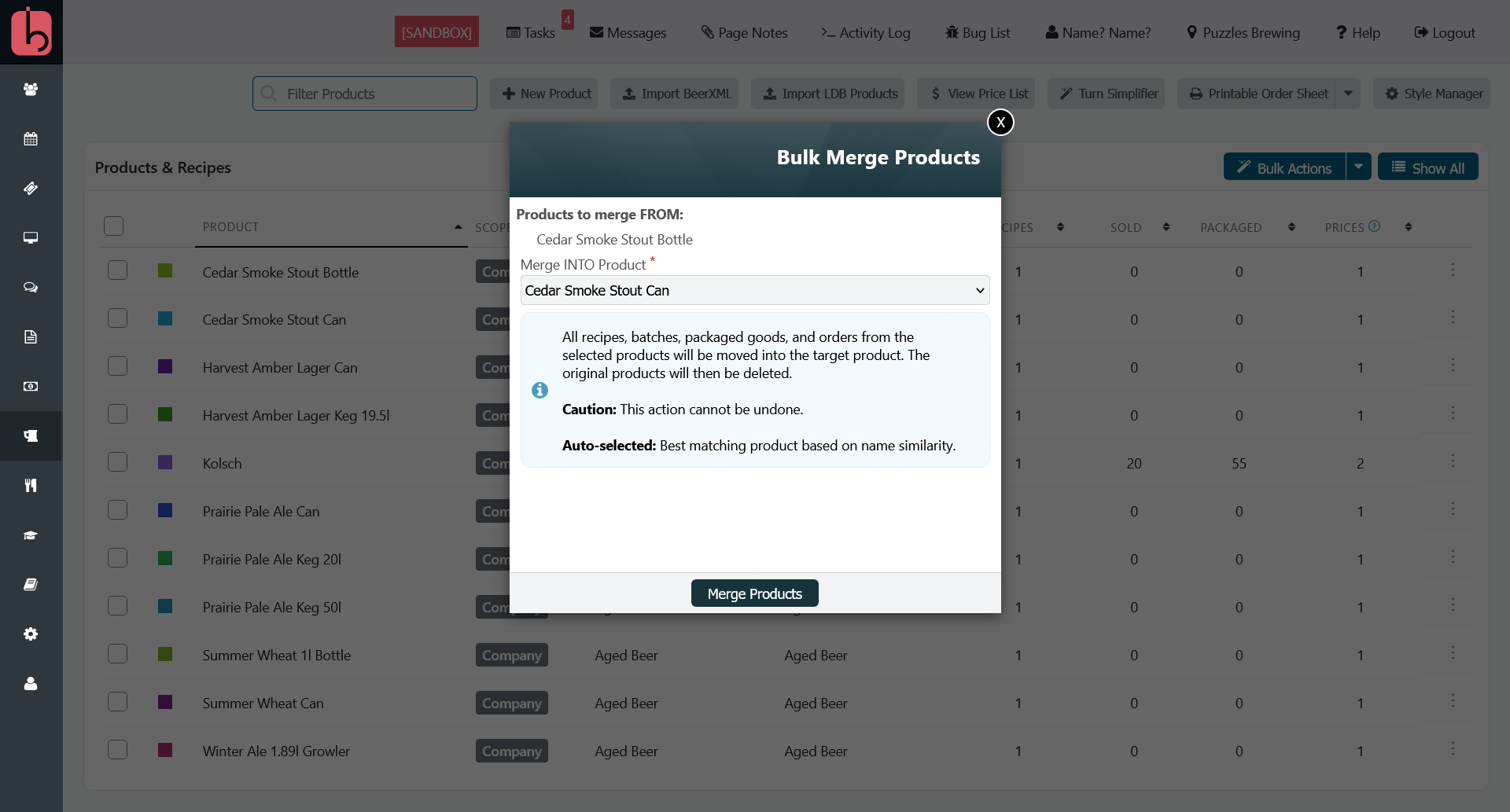
- The window shows the product under Products to merge FROM, and the Merge INTO Product dropdown is already set to the closest name match. Pack words such as "6 pack", "keg" and "can" are ignored when matching, so
Pale Ale 6 PacksuggestsPale Ale. Check the suggestion and change it if it is wrong. - Click Merge Products, then confirm.
Merging Several at Once
- Tick each duplicate you want to remove.
- Click Bulk Actions and choose Merge Selected.
- Check the suggested survivor in Merge INTO Product, click Merge Products, then confirm.
Several variants of the same beer, such as the can, the keg and the 6 pack that an import turned into three products, can all be ticked and merged into the real product in one go.
Merging From the Product Page
Open the product you want to remove and click Merge Product in the toolbar. This version of the form has one extra choice, Assign to Package Group. Leave it on Keep Original Package Groups unless the duplicate's name is really a package, such as Pale Ale (6-Pack), and its stock and order lines should all land on one package group of the survivor. When you do choose a group, every packaged batch on the surviving product is also switched to that group, so only use it when the survivor has no batches of its own yet.
What Happens
- Every recipe, including the
Importedplaceholder, every batch, every packaged stock record and every order line moves to the survivor. - Pricing is combined per package group, the same way as above. Where the survivor has no price row for a package group, the removed product's row is copied. Where it has one, only the blanks are filled: price, tax, SKU, UPC, deposit, portal visibility and holdback. Set prices on the survivor are never changed.
- The removed product and its own price rows are deleted permanently.
Pick the survivor with the recipe and settings you want to keep, not the one with the better name. If the imported copy has the name you prefer, merge it away and then use Rename Product from the row menu to rename the survivor.
Step 4: Merge Duplicate Recipes
After the product merges, each product that received an imported copy now has two or more recipes: your real recipe, and one or more placeholders named Imported. Those placeholders have no steps or ingredients, and they keep your real recipe from being the one your sales history points to.
- Go to Brewery → Recipes and open the product.
- In the Recipes box, open the three dot menu on the
Importedrecipe and choose Merge Recipe. To remove several at once, tick them and choose Bulk Actions → Merge Selected. - The Merge INTO Recipe dropdown lists the product's other recipes and is already set to the closest name match. Pick your real recipe.
- Click Merge Recipes, then confirm. The page reloads with the placeholder gone.
[SCREENSHOT: Product page Recipes box with an Imported recipe row's three dot menu open on Merge Recipe]
What Happens
- Every batch and every packaged stock record linked to the removed recipe is moved to the survivor, so the imported sales now show against your real recipe.
- The removed recipe is deleted permanently, along with its steps, tasks and ingredients. Always merge the
Importedplaceholder into your real recipe, never the other way round. If you merge in the wrong direction, your real recipe's steps and ingredients are gone. - Recipes can only be merged within one product. If the dropdown does not show the recipe you want, it belongs to another product, or it has been archived. Merge the products first, or restore the recipe, and try again.
Step 5: Check the Result
Open Reports → Brewery and compare a few numbers with your old system.
- Top Customers and Orders (By Customer) should show one line per customer, with the combined sales of the records you merged.
- Product Sales Summary should show one line per product. A product that still appears twice has a duplicate you missed.
- Packaged Stock (Current) lists the imported placeholder lots, named
Imported, under the products and package groups that survived.
Then open Brewery → Final Products. Each product should list each of its packages once, with the price you expect. If a package is missing a price, the survivor had none and the removed record had none either, so enter it by hand.
Tips and Best Practices
- Use the bulk form even for a single record. The row menu's Merge Product and Merge Recipe open it with that one record, and the suggested survivor saves you scrolling through a long dropdown.
- If there is only one copy and its name is wrong, rename it instead of merging. Rename Product and Rename Recipe are in the same three dot menus.
- Keep imported customers that are genuinely new. An unfamiliar name in the list is not always a duplicate. It may be an account your old system had and BarSight did not.
- Merging does not change order numbers or dates, so the orders import will still recognise the orders it created. Do not import the same file again after cleaning up, or the lines will be added to those orders a second time.
Troubleshooting
Problem: "The 2 package groups must consume the same volume."
Solution: The two groups differ in container volume, containers per package, SKU multiplier, tank settings or consume setting. Open both and compare the container line. Change the surviving group to match, or leave them as separate groups and move pricing by hand.
Problem: "Both package groups need to have the exact same inventory items" or "the same number inventory items".
Solution: One group has an item the other does not, such as a label or a tray. Add it to the other group first, following Adding Items to Package Groups Retroactively.
Problem: "Cannot merge a product into itself." (or customer, or recipe)
Solution: The survivor you picked is also ticked in the FROM list. Close the window, untick it, and open the merge again.
Problem: The product I want to keep is not in the Merge INTO Product dropdown.
Solution: It is hidden. Click Show All on the Recipes page, open the product, click Enable Product, and start the merge again.
Problem: The recipe I want to keep is not in the Merge INTO Recipe dropdown.
Solution: Only recipes on the same product are listed, and archived recipes are left out. If the recipe is on another product, merge the products first. If it is archived, restore it from the archived recipes list.
Problem: "Merged 3 customer(s). 1 failed."
Solution: The others went through. Reload the list, find the one that is still there, and merge it on its own from its row menu to see the reason.
Related Features
- Importing Brewery Orders, which explains how the import matches and creates records.
- Importing Products from the BC LDB Price List
- Bulk Merge Duplicates in One Pass
- Merge Duplicate Customers
- Merging Duplicate Package Groups
- Smart Product Merging with Automatic Pricing Transfer
- Merge Product Recipes
- Defining Packaging Groups and Creating Products and Recipes